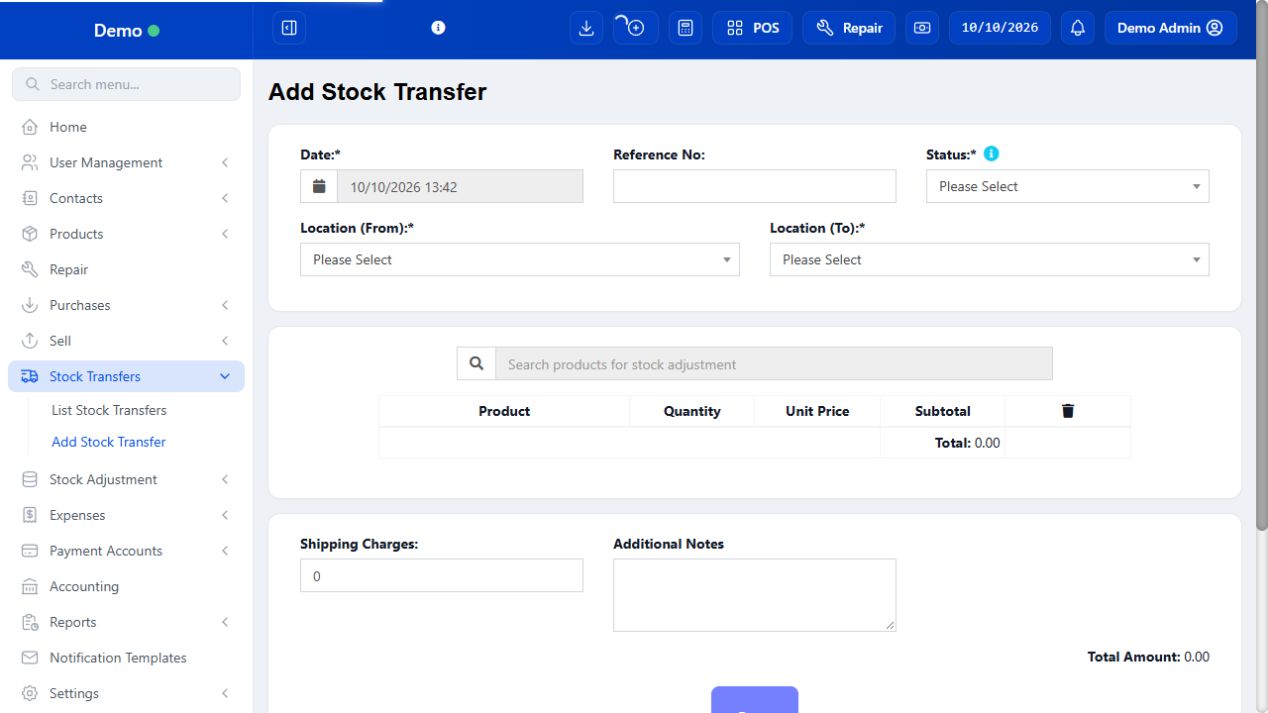
A stock transfer is a physical movement within the business, not a supplier purchase, sale or stock-loss adjustment. Choose the actual source and destination and review the stage used by your installation. Goods still in transit should not be confused with goods received at the destination. Verify stock history at both ends after completion.
SCREEN GUIDE Stock Transfers — module overview. Select the screenshot to enlarge; optional fields may differ in your business.
Field reference
Use this while completing the form. A required field is marked with *; conditional fields appear only when enabled.
Field / control
What to enter or understand
Date / Reference
Actual transfer date and unique movement reference.
From / To locations
Outlet sending and outlet receiving; verify they are different and correct.
Status
Actual offered stage such as pending/in-transit/completed. Check resulting stock behavior.
Product / variation / unit / quantity
Goods moved in the displayed unit; review box/base-unit conversion.
Shipping charges / notes
Transfer-associated charge and explanation, distinct from product quantity.
Before you start Have stock available in the source and confirm the destination.
Steps
Enter date and reference. Select From location and To location; they must represent the actual movement.
Add products, variations and quantities. Review units, lot details where available and shipping charges.
Choose the transfer status offered by the form. Use the completion/receipt step only when goods have arrived.
Save. Open List Stock Transfers and check the record. Compare source and destination stock after the completed movement.
SCREEN GUIDE Move stock between locations — look for the controls described in the steps. Select the screenshot to enlarge; optional fields may differ in your business.
Check the result The recorded transfer moves the intended quantities between the two locations.
Where to go Stock Transfers → list → View / permitted status/edit action
Before you start Match the shipment reference and physical goods.
Steps
Open the existing transfer, confirm From/To, product variations and dispatched quantities.
Count the goods received in the same unit; record/report any shortage before treating the whole transfer as received.
Use the offered status/receipt workflow to record the actual completion when permitted.
Inspect the stock report/history for both locations and match the transfer reference.
Resolve discrepancies through the manager’s correction flow; do not duplicate the transfer to make the receiving stock appear.
Check the result The completed movement is reflected at both outlets.
IN PRACTICE
A practical example
Warehouse sends five mugs to Main Store. Record the movement with Warehouse as From and Main Store as To. Confirm the physical receipt and each outlet balance; do not also enter a new supplier purchase for the same mugs.
Common questions
Why is destination stock unchanged?
Check receiving/completion stage, selected outlet and variation.
Can I use an adjustment instead?
A loss/correction adjustment does not represent the paired source/destination movement of a transfer.