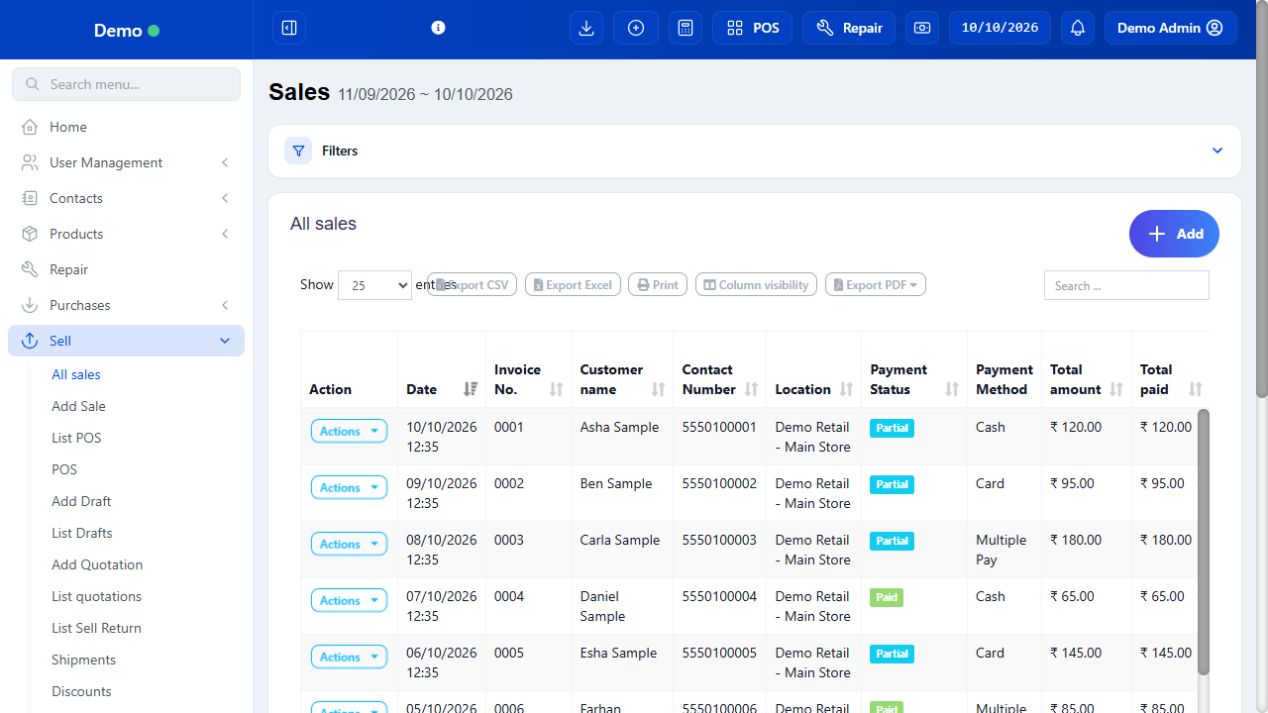
Previous bills is the reference point after a sale. View confirms what was billed, payment history confirms money, and print produces another copy of that same invoice. Finalized editing changes an existing transaction and needs appropriate access; returns record goods coming back and may involve a separate refund. Do not confuse editing a bill with adding a payment or returning an item.
SCREEN GUIDE Previous bills & returns — module overview. Select the screenshot to enlarge; optional fields may differ in your business.
Field reference
Use this while completing the form. A required field is marked with *; conditional fields appear only when enabled.
Field / control
What to enter or understand
Invoice / date / customer / total
Identity of the sale. Compare more than total when two bills have the same amount.
Payment status / payments / due
Read the actual payment entries and remaining amount; a status badge alone may not explain a discrepancy.
Actions
View, print, edit or return depending on permission and record conditions.
Return quantity
Quantity physically returned against the original item, not the original sold quantity unless all goods came back.
Refund method / amount
Money actually returned; stock return and payment refund must both be checked.
Shipping status / address
Delivery progress is separate from payment status.
Where to go Web Sell → All sales / List POS → Actions → Edit; native bill detail → web edit when offered
Before you start You need update permission, a connection and a bill that the server permits you to edit.
Steps
Open the existing bill and use Edit. In the native app, the supported finalized-bill edit opens the original web flow; complete normal sign-in if needed.
Check customer, location, product quantities, lot selections, price, discounts and tax. Make only the intended correction.
Review the payment section: preserve correct collected payments and resolve any balance/change caused by the edit.
Save the existing bill. Reopen it and check stock and the invoice total/payment status. Reprint the corrected invoice if required.
Check the result The original bill is corrected through the server’s authorized workflow.
Before you start Start with the existing invoice, never a replacement sale chosen just to hide a mistake.
Steps
For money owed on correct goods, use Add payment and verify the balance. Do not change product quantity just to reduce a due.
For goods physically coming back, use the return workflow with the original invoice and actual returned quantity.
For an authorised factual bill correction, use Edit on the original finalized bill when available. Review linked payments/stock and tax implications before saving.
In native apps, finalized editing opens the supported online web flow; finish it there and refresh app history.
Reopen the invoice/return/payment history and compare the result to the intended action.
Check the result The correction has the right business meaning and remains traceable.
Where to go Native Previous sales; web Sell → All Sales
Before you start Use the approximate date, customer/mobile or invoice number.
Steps
Open Previous sales/Recent transactions and use the available payment/date/location/search controls. Move to the correct page when older bills are not listed.
Open the matching invoice and review item quantities, totals and payment entries before printing/editing.
Close the detail/preview and use Back to POS or the page navigation control to return to the counter.
Confirm the active basket has not been mistaken for the historical invoice. Resume selling only on the intended current basket.
Check the result You can inspect a bill and safely return to the counter.
IN PRACTICE
A practical example
A customer returns one of three mugs. Return quantity is 1 against the original invoice. Adding a payment would increase collections without returning stock; editing quantity silently is not the same traceable return workflow.
Common questions
Why is Edit unavailable?
Check role, allowed edit period, record state and online connection. Native finalized editing depends on the original web edit flow.
Will reprinting create another invoice?
No. Reprint the existing bill rather than creating a second sale.