Expenses record a business cost and its payment, not purchased resale inventory. Enter supplier goods through Purchases so stock is tracked. A POS expense can affect the cashier’s cash reconciliation when supported, while a bank-paid expense belongs to its non-cash account. Expense total, tax and amount paid must be reviewed separately.
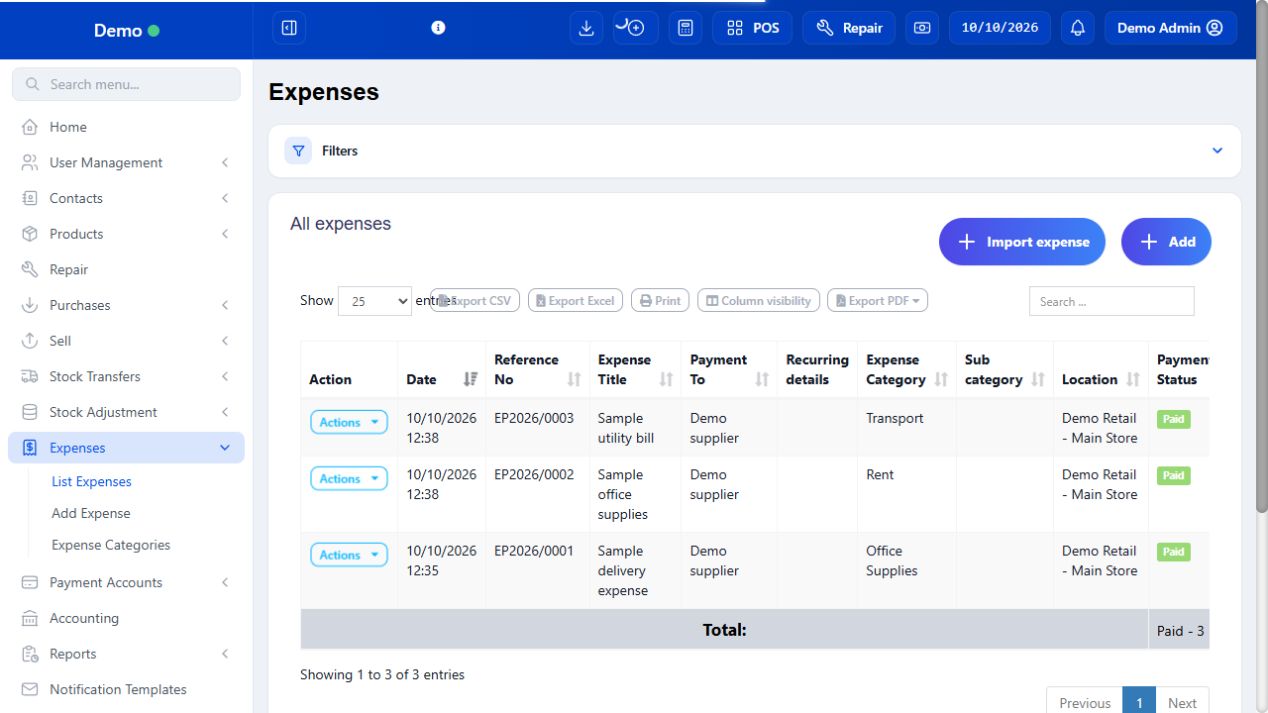
SCREEN GUIDE Expenses — module overview. Select the screenshot to enlarge; optional fields may differ in your business.
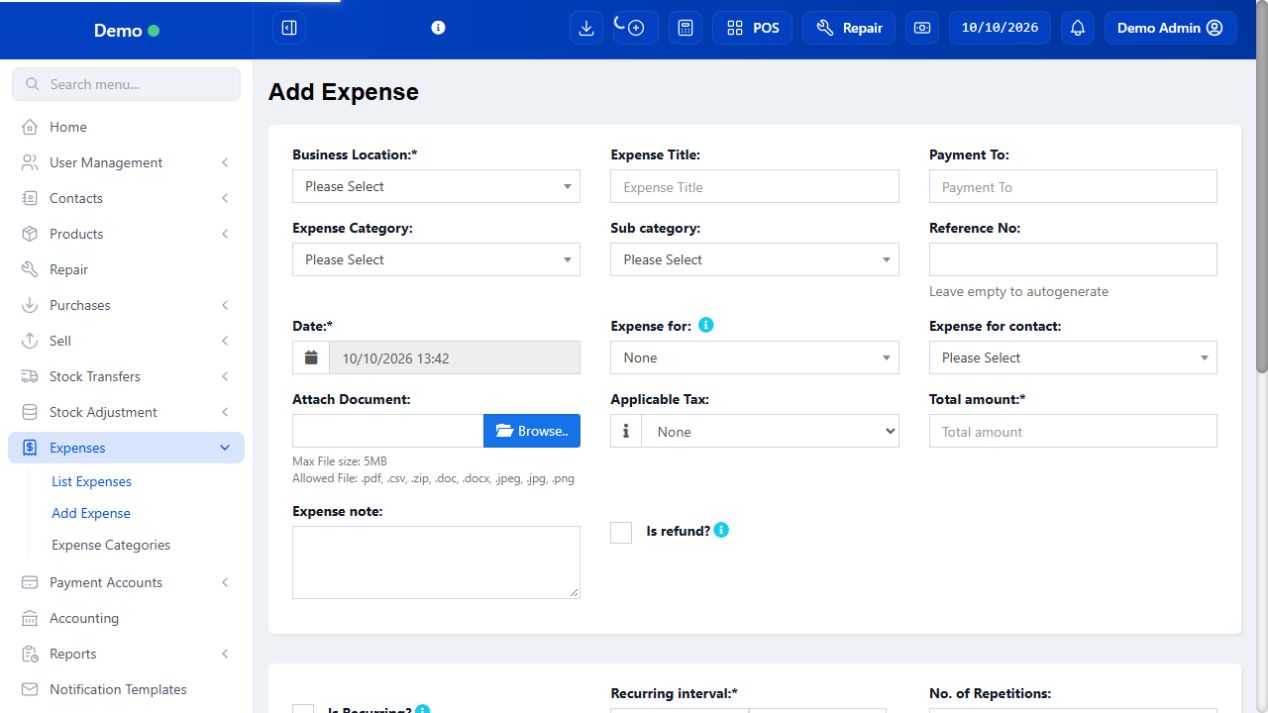
Field reference
Use this while completing the form. A required field is marked with *; conditional fields appear only when enabled.
Field / control
What to enter or understand
Location / title / category / subcategory
Where the cost belongs and what it is for. Categories support reporting; use a consistent policy.
Reference / date
Receipt or business reference and actual expense date. Check duplicates.
Expense for / contact / payment to
Staff or contact/payee involved, using the fields actually offered.
Applicable tax / total amount
Tax treatment and total cost. Do not add the same receipt tax twice.
Document / notes
Receipt and explanation needed for review.
Payment amount / method / account
Money actually paid and its source. Use Cash only when drawer cash really paid it.
Recurring / refund controls (web)
Conditional web actions distinct from one-off native expense entry.
Where to go Web POS → Add Expense; Expenses → Add Expense; native POS expense action
Before you start Know the location, purpose, amount and payment method.
Steps
Choose Add Expense. Select the location and expense category. On the full web form, enter Expense Title, Payment To and reference/date where appropriate.
Enter total amount, tax and note. Attach the supporting document on the web form when needed.
Record the actual payment amount, method and account. Choose cash only if the money came out of cash.
Save once and view List Expenses. For a POS cash expense, check that Cash Expenses in the current register reflects it once.
SCREEN GUIDE Add an expense from POS or the web — look for the controls described in the steps. Select the screenshot to enlarge; optional fields may differ in your business.
Check the result The expense is searchable and its payment is recorded in the appropriate place.
Where to go Expenses → Expense Categories / List Expenses
Before you start Use the full web workflow for advanced expense maintenance.
Steps
Create descriptive expense categories and subcategories as needed.
Find the expense by reference/date and use its permitted Actions to view or edit. Confirm the payment history before changing amounts.
On the web form, use Is refund only for a genuine expense refund. Use Is Recurring and its interval fields only for an intended repeated expense.
Review expense reports and payments after saving. Check any scheduled repetition with the manager.
SCREEN GUIDE Categories, refunds and recurring expenses — look for the controls described in the steps. Select the screenshot to enlarge; optional fields may differ in your business.
Check the result Expenses are classified consistently and refunds/recurrence are intentional.
Where to go Expenses → List Expenses / recurring controls
Before you start Use authorised web access for recurring/refund features.
Steps
Filter by date, outlet and category. Compare receipt/reference before adding another cost.
For recurring setup, review period, repeat rules and next date through the offered controls. A recurring schedule is not proof a bank payment occurred.
Use permitted edit/refund/payment actions according to whether the cost details or actual money movement need correction.
Inspect the expense report, payment history and relevant account/register after saving.
Do not represent a stock purchase as a recurring expense to avoid receiving goods.
Check the result Costs remain identifiable and payment records match reality.
IN PRACTICE
A practical example
Cleaning supplies consumed by the shop can be an expense. Bottles bought for resale are a purchase. Paying 150 for cleaning from drawer cash reduces expected drawer by 150; paying it from the bank does not.
Common questions
Why is an expense not reducing drawer cash?
Check whether it was actually recorded as cash and belongs to this register/outlet scope.
Can I add an expense offline?
The current native expense flow is online; offline sale storage is not an expense queue.