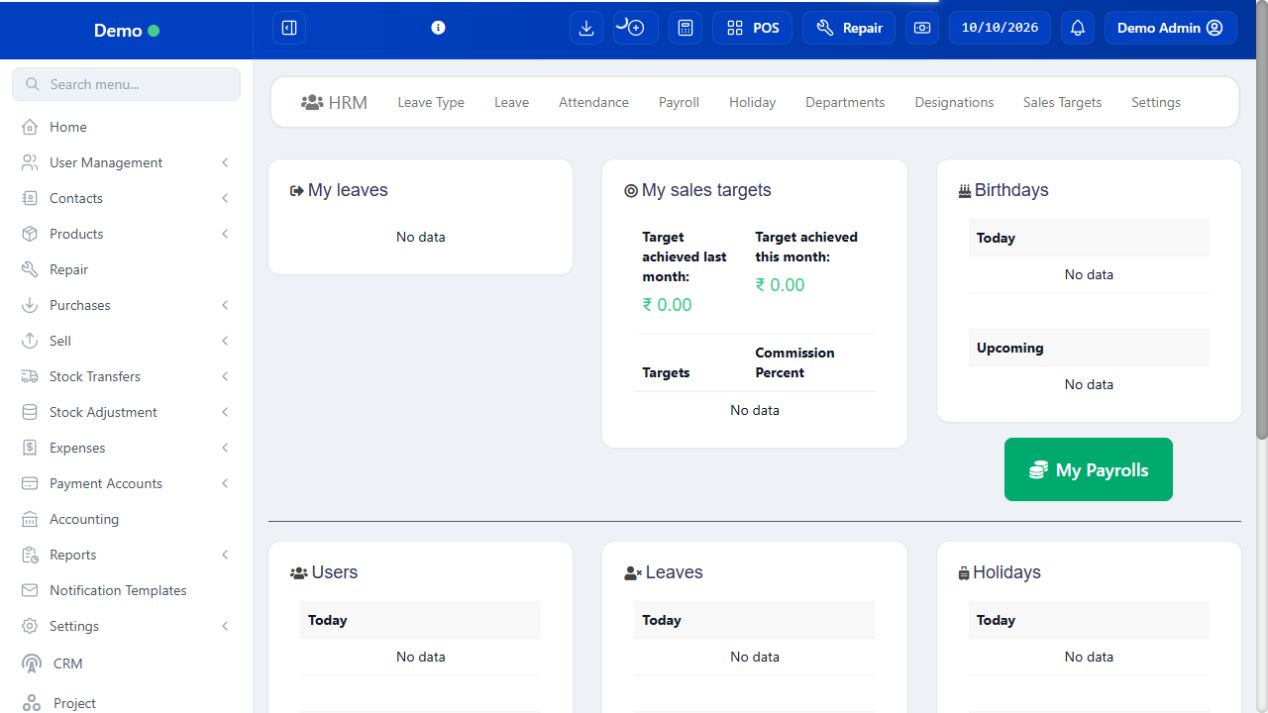
HRM concerns employees, attendance, leave and payroll. Essentials includes to-dos, reminders, shared notes/knowledge and other enabled work tools. Attendance records time; leave approval records permission to be absent; payroll records calculated pay and its payment. Clocking in does not prove payroll was paid. Use restricted HR access for staff records and review generated payroll before finalizing it.
SCREEN GUIDE HRM — module overview. Select the screenshot to enlarge; optional fields may differ in your business.
Field reference
Use this while completing the form. A required field is marked with *; conditional fields appear only when enabled.
Field / control
What to enter or understand
Employee / department / designation
Staff identity and organisation. Separate cashier login access from payroll setup.
Shift / clock-in / clock-out
Scheduled work period and actual attendance timestamps. Review overnight/date/timezone effects.
Leave type / dates / reason / status
Requested absence and approval decision; days and entitlement depend on the configured policy.
Holiday location / dates
Which outlet and period the holiday applies to.
Payroll period / duration / rate
The pay calculation basis. Hours, days and months are different duration units.
Allowance / deduction / fixed or percent
Approved additions/subtractions and effective period; review percentage basis before saving.
Payroll group status / payment
Prepared/final state and actual payment are separate.
To-do task / assigned users / priority / due
Work item and responsible team. It is separate from a Project task.
Reminder repeat / date / time
When the reminder should appear under the configured channel.
Knowledge sharing / users
Which staff can view a shared knowledge item or document.
Before you start Configure leave types/limits and role-based approval first.
Steps
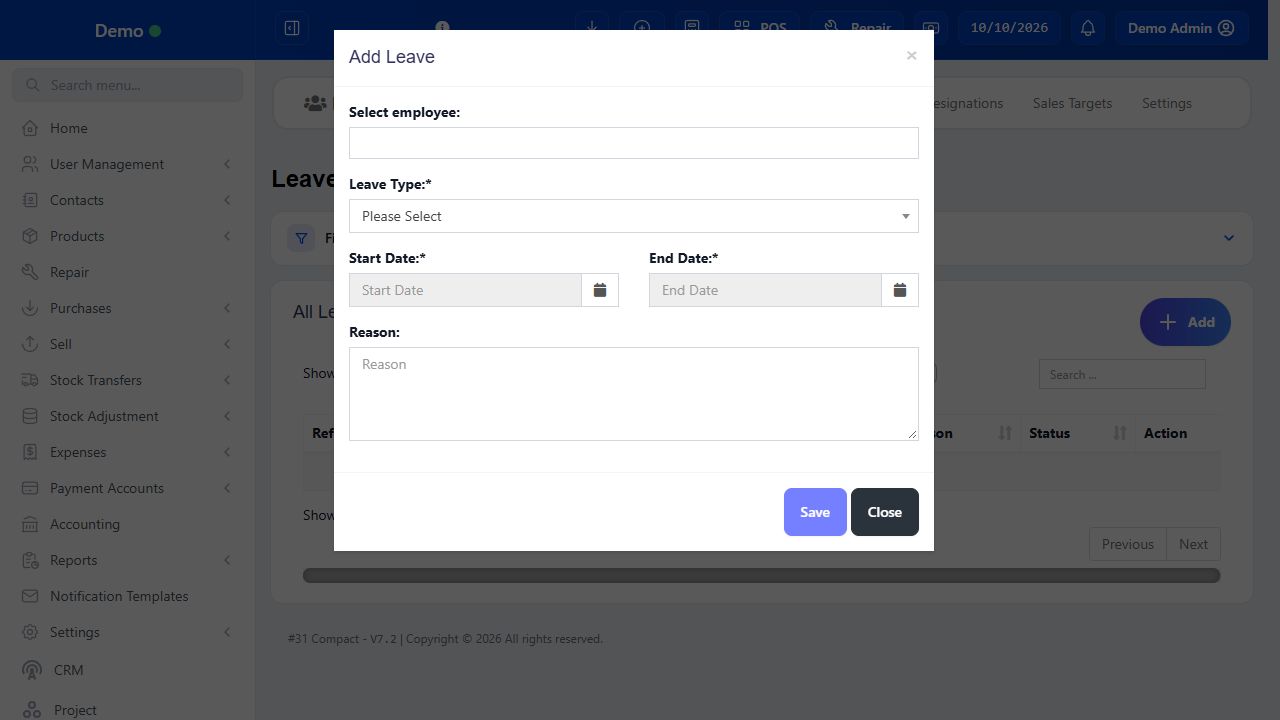
Choose Add leave, select the employee/type and enter start/end dates and a useful reason.
Save the request and inspect its status. A submitted request is not necessarily approved absence.
The authorised reviewer checks entitlement/schedule and uses the approval/rejection action offered.
Reopen the leave record to verify the decision and period. Check attendance/payroll impact under the actual configured policy.
For a corrected date/type, use the authorised edit/review flow so staff know which period is approved.
SCREEN GUIDE Request, approve and review leave — look for the controls described in the steps. Select the screenshot to enlarge; optional fields may differ in your business.
Check the result The absence request and decision remain distinguishable.
Where to go HRM → Payroll / allowance and deduction controls
Before you start Approve pay rates, attendance, leave and payroll period before calculation.
Steps
Choose the intended employee group and payroll period. Review the group name/status and each employee’s duration unit/rate.
Check calculated hours/days/months against approved attendance and leave. Add only approved allowances/deductions with the correct fixed/percentage meaning.
Review each employee total and notes. Save a draft/prepared payroll when the workflow permits review before finalization.
Finalise through authorised HR controls only after approval; then record the actual payment through its payment action.
Inspect payroll/payment reports and provide the appropriate payslip. A saved payroll is not evidence the employee received money.
Check the result Approved pay calculation and actual payment are both recorded.
IN PRACTICE
A practical example
A staff member requests leave Monday–Tuesday. The manager approves it. Payroll later uses the shop’s leave and attendance policy to determine payable time; a leave approval does not itself create a salary payment.
Common questions
Does Clock In open a POS cash register?
No. Staff attendance and cashier register opening are different actions.
Why does a saved payroll show unpaid?
Pay calculation/finalization and actual payment are separate steps.
Should I put project work in To Do or Project?
Use To Do for a standalone staff action; Project tasks belong to a project’s deliverables, time and billing workflow.