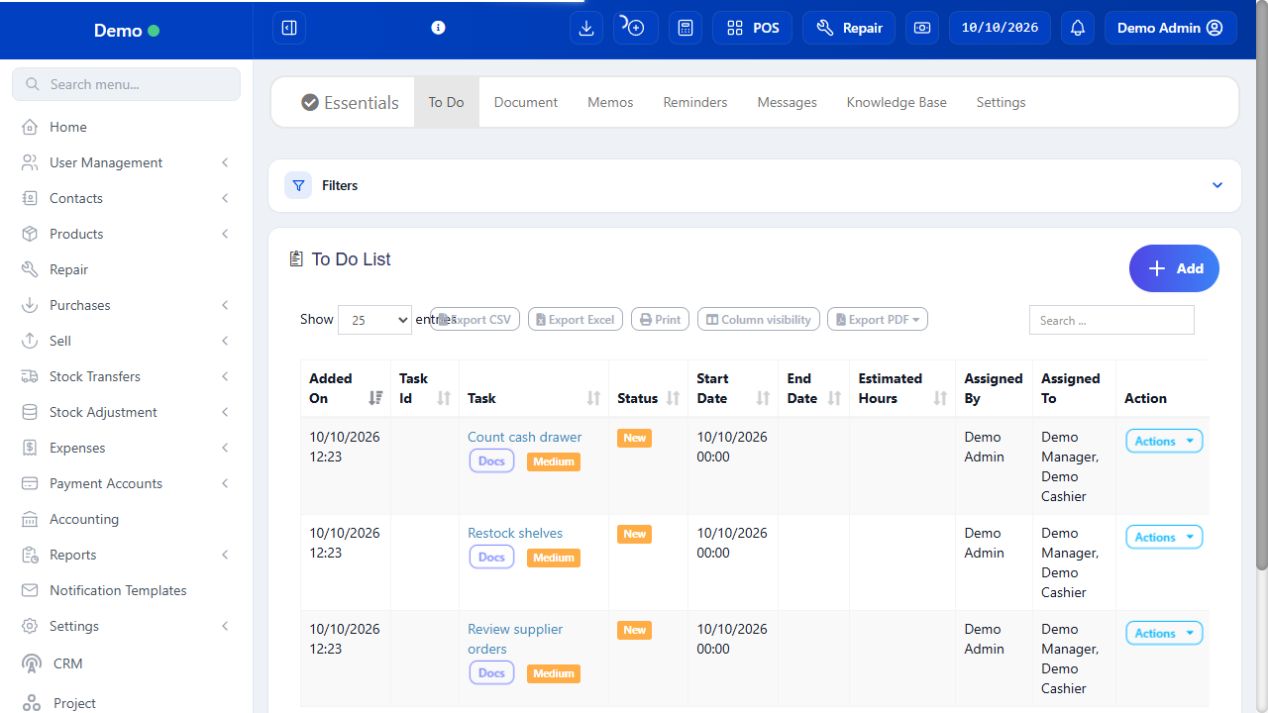
A To Do is a standalone assigned work item with priority, deadline and status. A Reminder is a scheduled prompt; it does not prove a task was completed. A Knowledge Base item stores reusable instructions with an explicit sharing scope. These staff tools are distinct from Project tasks, which belong to a project with its own team, time and invoices.
SCREEN GUIDE Essentials — module overview. Select the screenshot to enlarge; optional fields may differ in your business.
Field reference
Use this while completing the form. A required field is marked with *; conditional fields appear only when enabled.
Field / control
What to enter or understand
Task / Description
State the actual action and expected result, such as Count aisle 2 before closing.
Assigned users / Priority / Status
Who is accountable, urgency and actual progress. Assignment alone does not complete work.
Start / End / estimated hours
Schedule and effort estimate, not a payroll calculation.
Reminder name / repeat / date / time
Which prompt and when it should repeat. Review the timezone and intended channel.
Knowledge title / content
Reusable instruction and its supporting details.
Share with / user IDs
Intended staff audience. Do not make confidential HR information broadly visible.
Where to go Essentials → To Do List / other available tabs
Before you start Assign each task a responsible person and due date.
Steps
Choose Add in To Do List and enter a clear task description, assigned users, priority and due date.
Save, then use the list/status filters to find your work. Update status as work progresses.
Use available document, memo, reminder, knowledge-base or messaging tools according to your business permissions.
Review completed and overdue tasks rather than creating duplicate tasks for the same work.
SCREEN GUIDE Use to-dos and Essentials tools — look for the controls described in the steps. Select the screenshot to enlarge; optional fields may differ in your business.
Check the result Day-to-day work remains visible to the assigned users.
Before you start Use the approved reminder channel and correct business time.
Steps
Choose Add reminder and enter a recognisable Name describing the action.
Choose the actual repeat schedule and date/time controls offered. A one-time date and a repeated weekday are different rules.
Save and review the reminder list for the next intended occurrence.
When the reminder appears, complete the real work and update its To Do or relevant module separately.
Edit/stop the schedule when no longer needed through the authorised control; dismissing one prompt is not necessarily cancellation of all repeats.
Check the result The intended staff prompt has the correct schedule.
IN PRACTICE
A practical example
Create a To Do for today’s stock count, a Reminder for the month-end review and a Knowledge Base instruction explaining how to count. They support one another but are three separate records.
Common questions
Is a To Do the same as a Project task?
No. Project tasks are tied to project membership, progress, time and billing.
Why can another staff member not read a note?
Check its sharing choices and the person’s Essentials permissions.