Web portal
Notification Templates
Prepare and verify the messages used by sales, customer reminders and enabled modules.
2 procedures · Field reference · Practical example · Common questions
Understand the workflow
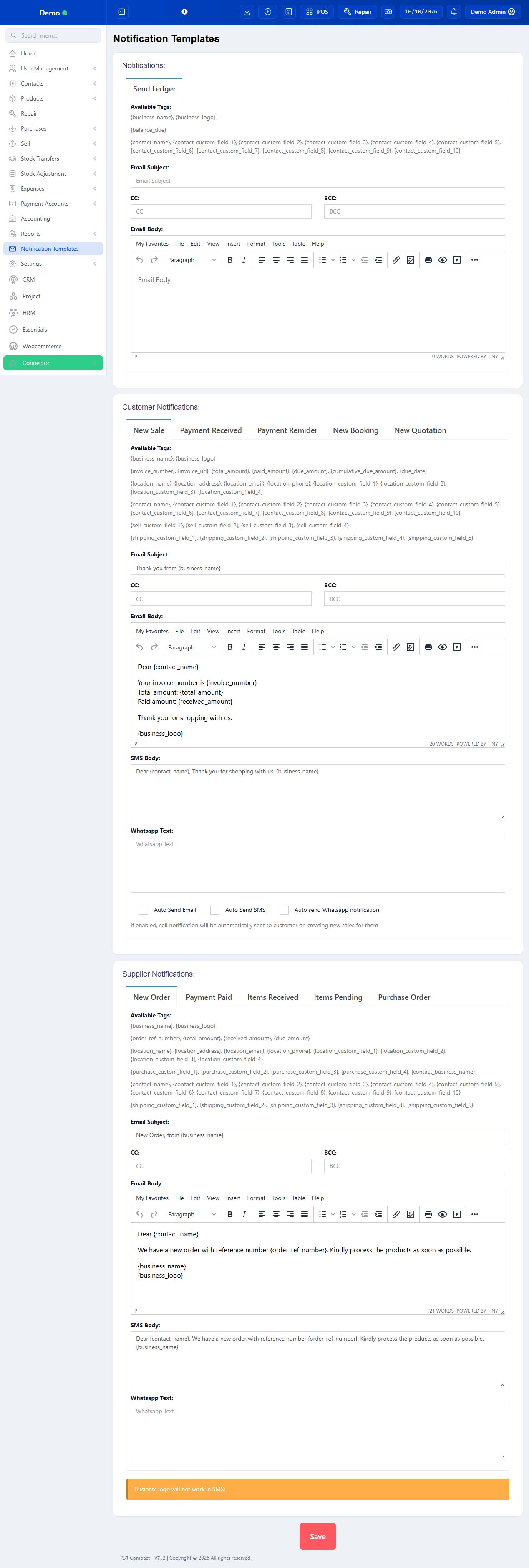
A template defines event/channel wording and placeholder fields. Channel configuration supplies the email/SMS delivery path. A module’s Send action or notification checkbox decides when the message is issued. Verify all three and the intended recipient. Saving a template is not evidence of successful delivery. Auto Send Email, Auto Send SMS and Auto send WhatsApp controls can trigger messages on later transaction events. Review these separately from a manual Send action; saving a changed auto-send setting changes future behavior.
PROCEDURE 01
Review notification templates and a test message #
Where to go Notification Templates; business channel settings
Before you start
Use an approved test recipient, not a real customer mailing list.
Steps
- Open the template for the intended event/channel and read its subject/body and supported placeholders.
- Check that names, invoice/job references and amounts will be substituted appropriately.
- Have the administrator verify the channel configuration, then send only the approved test through the offered action.
- Review the actual received message and any available delivery/history result.
- Train staff on the explicit send or notification checkbox for each module; template editing alone is not proof of delivery.
Check the result
Messages are understandable and their intended send behavior is known.
PROCEDURE 02
Maintain a template for a transaction event #
Where to go Notification Templates → event template
Before you start
Have the approved wording and know the supported placeholders.
Steps
- Open the event/channel template and read its existing subject/body.
- Use only the listed placeholders for the customer, transaction, amount or reference you want shown.
- Save the wording and review its recipient/send behavior in the relevant module.
- Run the approved single-recipient test and inspect the actual message.
- Correct wording/substitution before wider use and tell staff which action sends the message.
Check the result
The event message is understandable and its substitutions are checked.