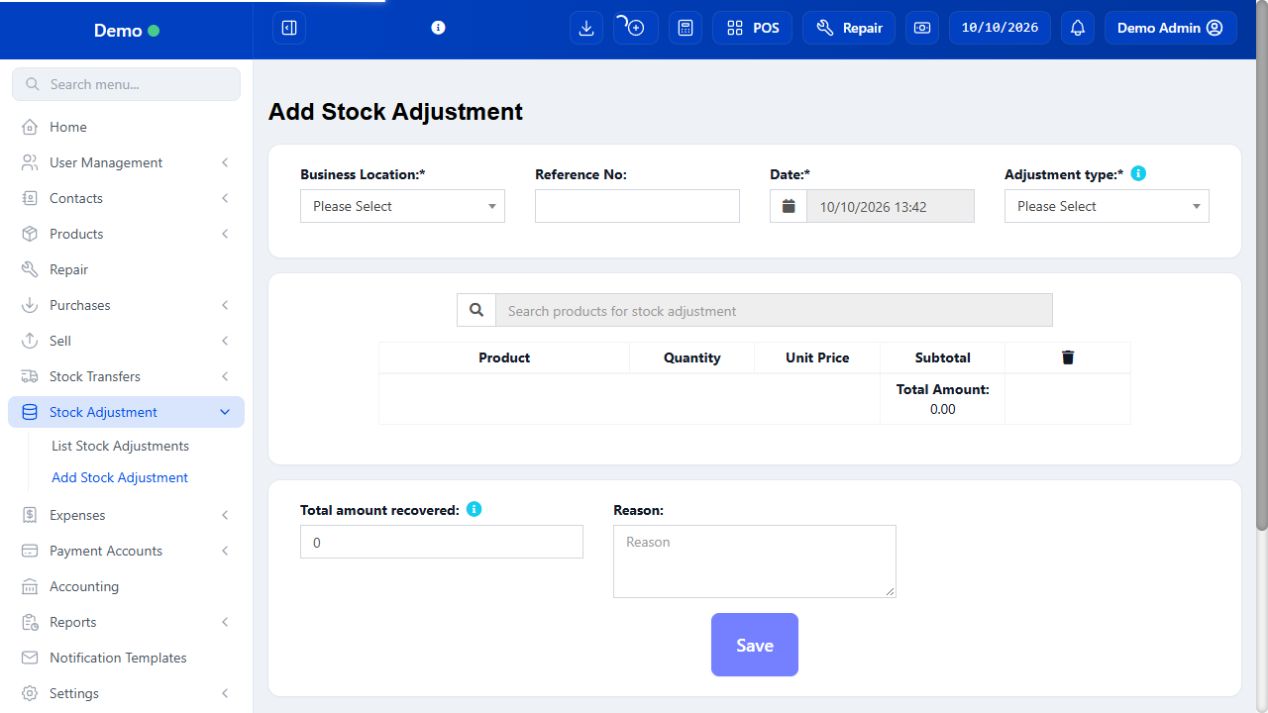
Use adjustments after reviewing the physical count and Stock History. An adjustment explains a discrepancy or removal, not a routine purchase, transfer or customer return. The form’s type and quantity determine what changes, so read them before saving. Recovered amount is not automatically the number of items removed or a customer sale.
SCREEN GUIDE Stock Adjustments — module overview. Select the screenshot to enlarge; optional fields may differ in your business.
Field reference
Use this while completing the form. A required field is marked with *; conditional fields appear only when enabled.
Field / control
What to enter or understand
Location / Date / Reference
Where and when the counted discrepancy occurred.
Adjustment type
Normal/abnormal or other offered classification; follow the shop’s approved policy.
Product / variation / quantity / unit
Affected item and adjustment quantity, not automatically its desired ending balance.
Amount / recovered amount
Value/cost or recovered money as the form describes, distinct from quantity.
Reason / note
Traceable count/damage explanation for manager review.
Where to go Stock Adjustment → Add Stock Adjustment
Before you start Recount the item and confirm the discrepancy with the manager.
Steps
Select the business location, date, reference and adjustment type.
Search the product and enter the quantity to adjust using the correct unit and variation.
Enter a clear Reason, such as damaged package or count discrepancy. Record recovered amount only if applicable.
Review and Save. Check the Stock Adjustment list and stock history to confirm the expected movement.
SCREEN GUIDE Record damaged, missing or corrected stock — look for the controls described in the steps. Select the screenshot to enlarge; optional fields may differ in your business.
Check the result The quantity change has a traceable reason and record.
Where to go Stock Adjustment → list; product → Stock History
Before you start Keep its reference and the original count explanation.
Steps
Open the saved adjustment and verify outlet, variation, quantity, type and reason.
Open the same product’s Stock History and match the adjustment reference.
Compare the new report balance to the checked physical count, accounting for later sales/receipts.
For a mistake, use the permitted correction with manager approval; first establish the effect of the original entry.
Keep the evidence for day-end stock review rather than repeatedly adjusting until a number looks right.
Check the result The adjustment and resulting balance agree with the intended correction.
IN PRACTICE
A practical example
Recorded stock is 10 mugs but only 8 are present because two broke. Review history and approve the loss, then record the two affected mugs at that outlet with a breakage reason. Do not enter 8 as the adjustment quantity if the form expects the amount removed.
Common questions
Why did my stock fall by too much?
Check whether you entered desired ending balance instead of adjustment quantity, and inspect the saved reference before correcting.
Should expired goods be a new sale?
Use the approved adjustment/return/removal process for the actual event; do not invent a customer sale.