31 Compact logo31 COMPACTUser manual
Open application ↗Complete manual

Web portal

Accounting

Classify transactions and review financial statements through the chart, mappings and balanced journals.

In this moduleUnderstand the workflowField referenceUse chart of accounts, journals and mappingReview financial statementsCreate a ledger account and review mappingEnter and check a manual journalReconcile accounts and financial statementsPractical exampleCommon questions

Understand the workflow

Payment Accounts tracks where money is held and its movements. Accounting adds a chart of accounts, journals, mapping and statements. A cash/card method is not itself a general-ledger account. Opening balances need an agreed cut-over date; posting manual journals on top of automatically mapped transactions can duplicate accounting entries. These full finance screens are web workflows for authorised staff.

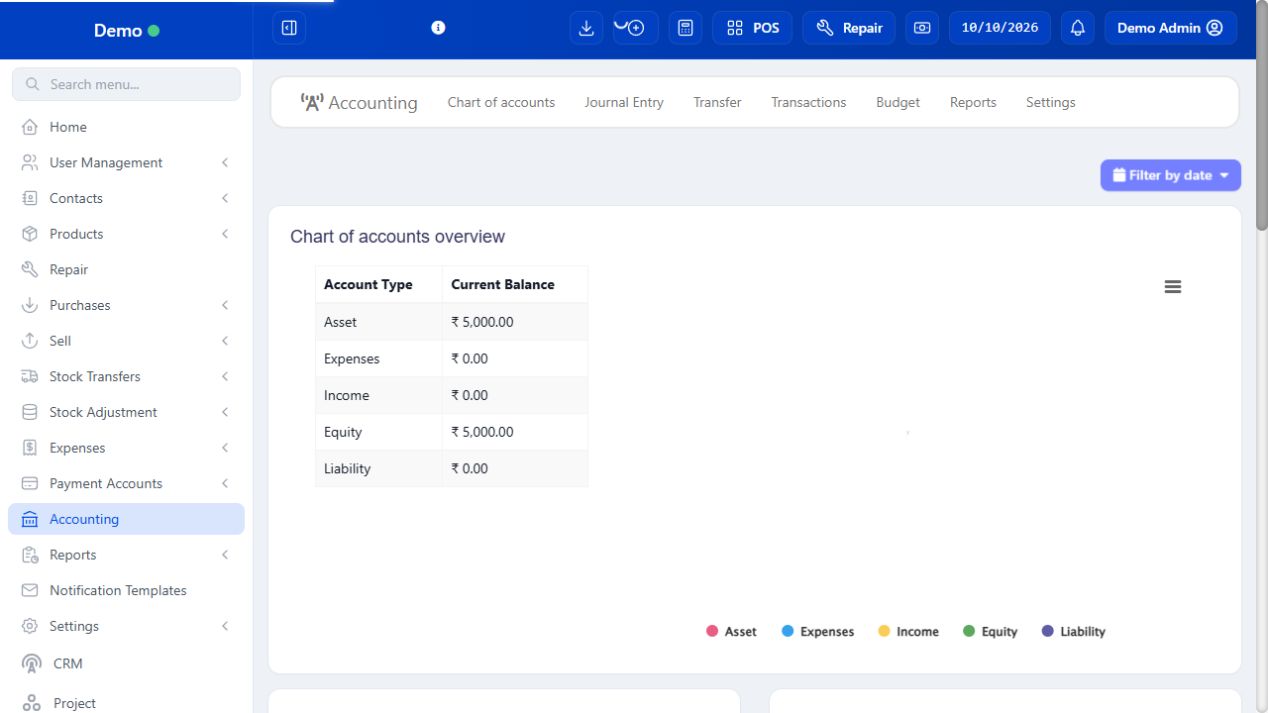
Accounting — module overview
SCREEN GUIDE Accounting — module overview. Select the screenshot to enlarge; optional fields may differ in your business.

Field reference

Use this while completing the form. A required field is marked with *; conditional fields appear only when enabled.

Field / controlWhat to enter or understand
Primary / sub / detail typeClassification in Chart of Accounts for the financial statement structure.
GL code / parent / balance as ofUnique ledger reference, hierarchy and opening-balance date.
Journal reference / date / noteIdentity and explanation for a manual adjustment.
Journal debit / credit linesBalanced accounting entry. Equal sums are necessary but do not prove the selected accounts are correct.
Transaction mappingConfigured accounts for business transactions. Review mapping before relying on statements.
Report periodDate scope for trial balance, ledger, income/balance reports.

PROCEDURE 01

Use chart of accounts, journals and mapping

Where to go Accounting → Chart of accounts / Journal Entry / Transactions / Settings

Before you start
The module must be available and your role must allow it. Coordinate with the person responsible for accounts.

Steps

  1. Review the chart of accounts and account types. Add the required asset, liability, equity, income and expense accounts.
  2. Review transaction mappings/settings so operational purchases, sales and expenses go to the intended accounts.
  3. Create manual journals only with a reason and balanced debit/credit totals. Use Accounting transfers for its supported accounting movements.
  4. Open an account ledger and compare entries to the source transactions. Use budgets/reconciliation only when configured for your business.

Check the result
The chart and journal entries support consistent bookkeeping.

PROCEDURE 02

Review financial statements

Where to go Accounting → Reports

Before you start
Check mappings and posted entries first.

Steps

  1. Select the statement and the reporting date/range: trial balance, balance sheet and receivable/payable ageing are available in the installed Accounting routes.
  2. Use the same reporting scope when comparing statements. Open ledger/detail links to investigate an unexpected balance.
  3. Compare aged dues against customer/supplier ledgers and confirm unapplied payments or opening balances.
  4. Export the reviewed statement for your bookkeeper.

Check the result
Statements have an explainable connection to the recorded transactions.

PROCEDURE 03

Create a ledger account and review mapping

Where to go Accounting → Chart of Accounts / Settings / mapping

Before you start
An accountant should approve classification and starting balances.

Steps

  1. Choose Add account and set primary/sub/detail type, descriptive name and GL code.
  2. Choose the correct parent if using a hierarchy, and enter only an approved balance/as-of date.
  3. Save and inspect the chart. Avoid duplicate ledger accounts with slightly different names for the same purpose.
  4. Review transaction mapping using the actual available settings. Map sales/payment/expense categories deliberately.
  5. Inspect an approved sample transaction’s ledger result before using the mapping across normal operations.

Check the result
Transactions can be classified consistently in financial reports.

PROCEDURE 04

Enter and check a manual journal

Where to go Accounting → Journal Entry

Before you start
Use an approved adjustment explanation; avoid duplicating mapped sales or expenses.

Steps

  1. Enter reference, journal date and a meaningful note describing the accounting reason.
  2. Add the intended account lines and debit/credit amounts. Check total debits equal total credits.
  3. Review each account, period and amount; a balanced entry can still be posted to the wrong account.
  4. Save and read the journal/ledger result. Retain its supporting evidence.
  5. Correct an error through the authorised accountant workflow rather than adding unexplained balancing entries.

Check the result
The adjustment is balanced, explained and visible in the relevant ledger.

PROCEDURE 05

Reconcile accounts and financial statements

Where to go Payment Accounts; Accounting → Reports

Before you start
Use matching periods and an approved opening-balance basis.

Steps

  1. Compare recorded account movements with bank/terminal/cash evidence.
  2. Review outstanding customer/supplier balances and unmapped transactions where the module offers them.
  3. Open trial balance/ledger and income/balance reports with the same intended period.
  4. Trace discrepancies to opening balances, missing or duplicate movements, dates and mappings.
  5. Complete the review with the accountant before making closing adjustments. The POS drawer report alone is not a complete financial statement.

Check the result
Reported balances have been checked against underlying movements.

IN PRACTICE

A practical example

Moving 2,000 from bank to cash changes two account balances. It is not new sales revenue. Recording both a transfer and a fictitious expense for that move would misstate the books.

Common questions

Are UPI and my bank account the same field?

UPI is a payment method; the account records where those funds belong.

Should I journal every POS sale manually?

Review mapping first. Manual entries can duplicate transactions already posted by the configured integration.