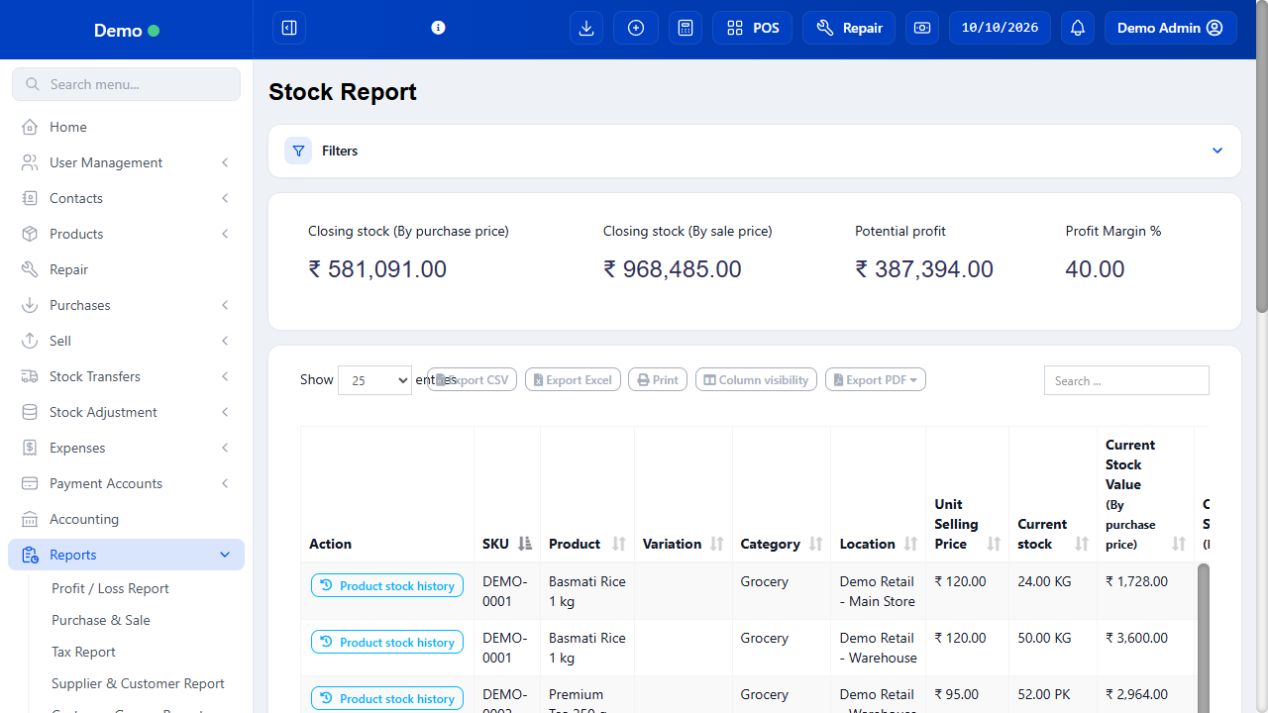
Stock is a quantity at a particular outlet for a particular product variation. A batch further identifies its receipt/expiry. The number on a product card is not a company-wide promise that stock is available at every outlet. Transfers move goods; adjustments explain discrepancies; purchases receive goods; returns reverse the appropriate transaction. Use stock history to diagnose a difference before correcting it.
SCREEN GUIDE Stock & inventory — module overview. Select the screenshot to enlarge; optional fields may differ in your business.
Field reference
Use this while completing the form. A required field is marked with *; conditional fields appear only when enabled.
Field / control
What to enter or understand
Location / variation
Which stock record is being viewed or moved. One parent product can have several separately stocked variations.
Current stock / unit
Recorded available quantity in the displayed unit. Check conversion for box/pack measurements.
Lot number / expiry
Receipt-specific identity/date; select the actual physical lot when selling or transferring.
Transfer From / To
Different source and destination outlets. Do not reverse them.
Transfer status
Stage offered by the transfer workflow. Verify both locations’ stock after the intended completed/received stage.
Adjustment type / quantity / reason
Nature and size of the discrepancy. Enter the amount to adjust according to the form, not automatically the final desired stock.
Stock history
Chronological purchases, sales, transfers, returns and adjustments used to explain the balance.
Where to go Products → List Products → Stock Report; Reports → Stock Report / Lot Report
Before you start Choose the location whose stock you want to inspect.
Steps
Open Stock Report and select the location, category, brand or product filters. Search the SKU/name if needed.
Read Current stock in its displayed unit. All-locations totals can differ from the quantity available at the selling location.
Use Lot Report for lot numbers and Stock Expiry Report for expiring quantities. Open product stock history from its Actions menu to trace movements.
In native POS, open the Stock page and search the product. While offline, the figures are the downloaded snapshot minus local reservations, not live stock from other devices.
Check the result You can explain stock quantities from receipts, sales, returns, transfers and adjustments.
Where to go Products → Stock History; Reports → Stock Report
Before you start Count the exact variation/outlet and check pending physical receipts or transfers.
Steps
Filter stock to the intended outlet and compare the physical count in the same base unit.
Open the product’s stock history. Check purchases received, sales, returns, transfers and previous adjustments around the discrepancy.
Check whether goods are physically in transit or were received under another variation/lot before changing the balance.
For a verified difference, use the authorised adjustment flow with the actual discrepancy and a clear reason. Do not change every outlet to the same count.
Reopen history/report and confirm the correction’s reference and new quantity. Retain the count explanation for the manager.
Check the result The corrected balance has a traceable cause rather than an unexplained override.
Where to go Home → stock alerts; Reports → Stock / Expiry report
Before you start Lot/expiry data and alert quantities must be configured first.
Steps
Select the outlet/date or expiry filters and read remaining stock and expiry dates.
Separate low quantity from expired or damaged stock. A low-stock alert does not automatically raise a supplier order.
Arrange replenishment through purchases/transfers for shortages. Follow the shop’s handling policy for expired goods.
Use the appropriate adjustment/return flow for physically removed goods after approval.
Refresh the report to ensure the movement is reflected, and download fresh app data if counters will sell offline.
Check the result Staff act on the correct shortage or expiry issue.
IN PRACTICE
A practical example
Main Store has 10 mugs and Warehouse has 30. A completed transfer of 5 from Warehouse to Main should reconcile to 15 and 25, before other transactions. An adjustment for 2 broken mugs concerns the outlet where they were broken, not both outlets.
Common questions
Why do two outlets show different quantities?
Stock is location-specific. Products can be assigned to both without moving goods.
Why is a batch unavailable at the counter?
Check outlet, variation, remaining quantity, lot/expiry entry and the business’s expiry/stock restrictions.