Always filter by the same date range and locations before comparing reports. Sales, collections, dues, profit and cash represent different measurements.
4 procedures · Field reference · Practical example · Common questions
Choose a report by the question you want answered. Stock report answers quantity at an outlet; sales reports answer billed activity; payment reports answer collections; profit/loss considers costs; the register concerns a cashier’s drawer. Always align date, outlet and status filters before comparing numbers. Exports reflect the selected scope, not necessarily the entire business.
SCREEN GUIDE Reports — module overview. Select the screenshot to enlarge; optional fields may differ in your business.
Field reference
Use this while completing the form. A required field is marked with *; conditional fields appear only when enabled.
Field / control
What to enter or understand
Date range / outlet / staff / status
Scope of the figures. Different scope produces valid but different totals.
Sales / payment / due
Invoice value, money collected and unpaid balance are distinct.
Cost / profit
Depends on recorded purchases and valuation rules; incomplete starting costs can mislead.
Stock / lot / expiry
Quantity and ageing data, not money received.
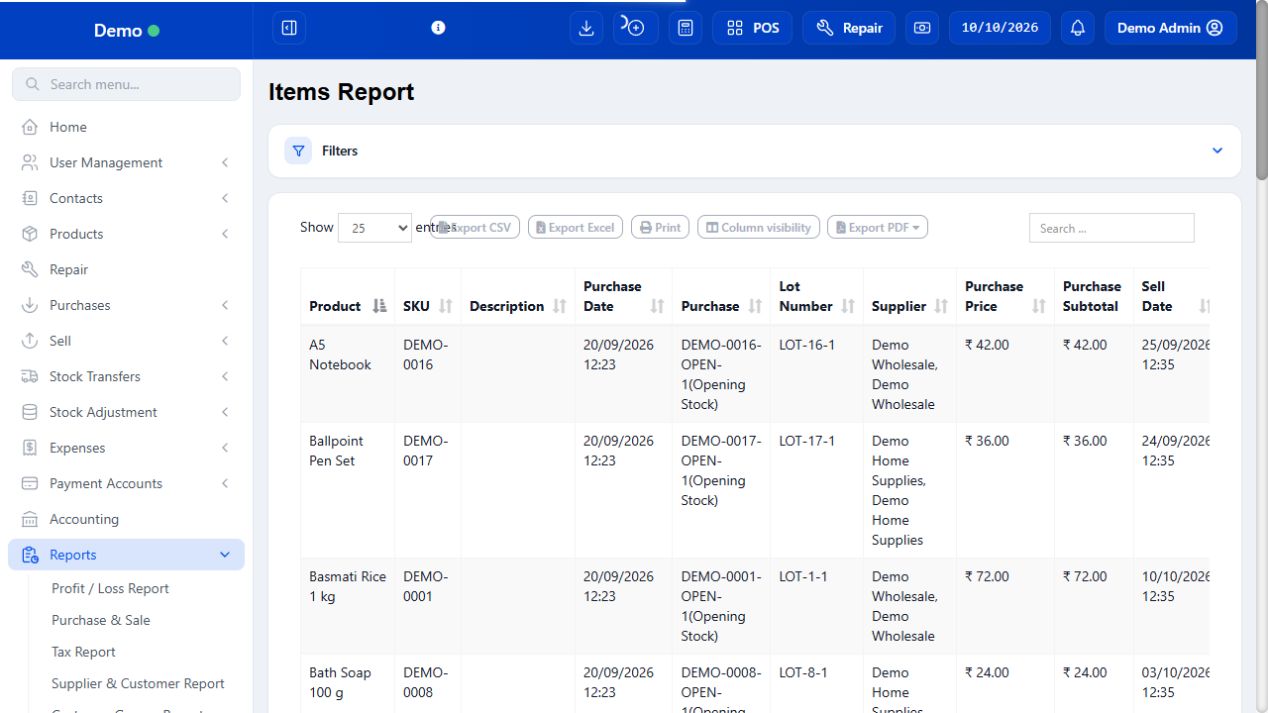
Items report
Compact’s item-focused report/customisation; review product/variation, quantity/value and available filters.
Export / column visibility
Save/display selected information. Confirm scope and protect customer/staff data.
Before you start Manager/report permission may be required.
Steps
Use Purchase & Sale for trading totals, Profit / Loss for operational profitability, and Tax Report for configured tax figures.
Use Stock Report, Lot Report, Stock Expiry and Stock Adjustment Report for inventory. Use Product Purchase/Sell and Purchase & Sale Product for item movements.
Use Sell Payment, Purchase Payment, Payment by Age and Supplier & Customer reports for collections and balances.
Use Expense Report and Register Report for spending/shifts. Use Sales Representative and Customer Groups reports where applicable.
Use Items Report for the customized item-focused view. Set its offered date/location/product filters and check displayed quantities/totals before exporting.
Check the result You are comparing records that answer the same business question.
Before you start Products must have correct units, location and recorded stock movements.
Steps
Filter item sales to the intended outlet and period. Compare quantities by product/variation rather than only category totals.
Open Stock report for the same outlet and compare remaining quantity and low-stock thresholds.
Review batches/expiry when ordering perishable goods; high stock with short expiry may not justify replenishment.
Create the appropriate supplier order/purchase or transfer after the manager reviews demand.
Check later receipts/transfers in the stock report so duplicate replenishment is avoided.
Check the result Purchasing decisions use sales demand and actual outlet stock together.
IN PRACTICE
A practical example
A 1,000 credit invoice today can appear in sales with no cash collected. A 500 collection on last month’s invoice can appear in today’s payment report without adding 500 to today’s new sales.
Common questions
Why does dashboard total differ from a report?
Align period/location/status and determine whether the figure is invoiced, net of returns, or collected money.
Is report export a backup?
An export is a selected report, not the complete server database or unsynchronized device records.