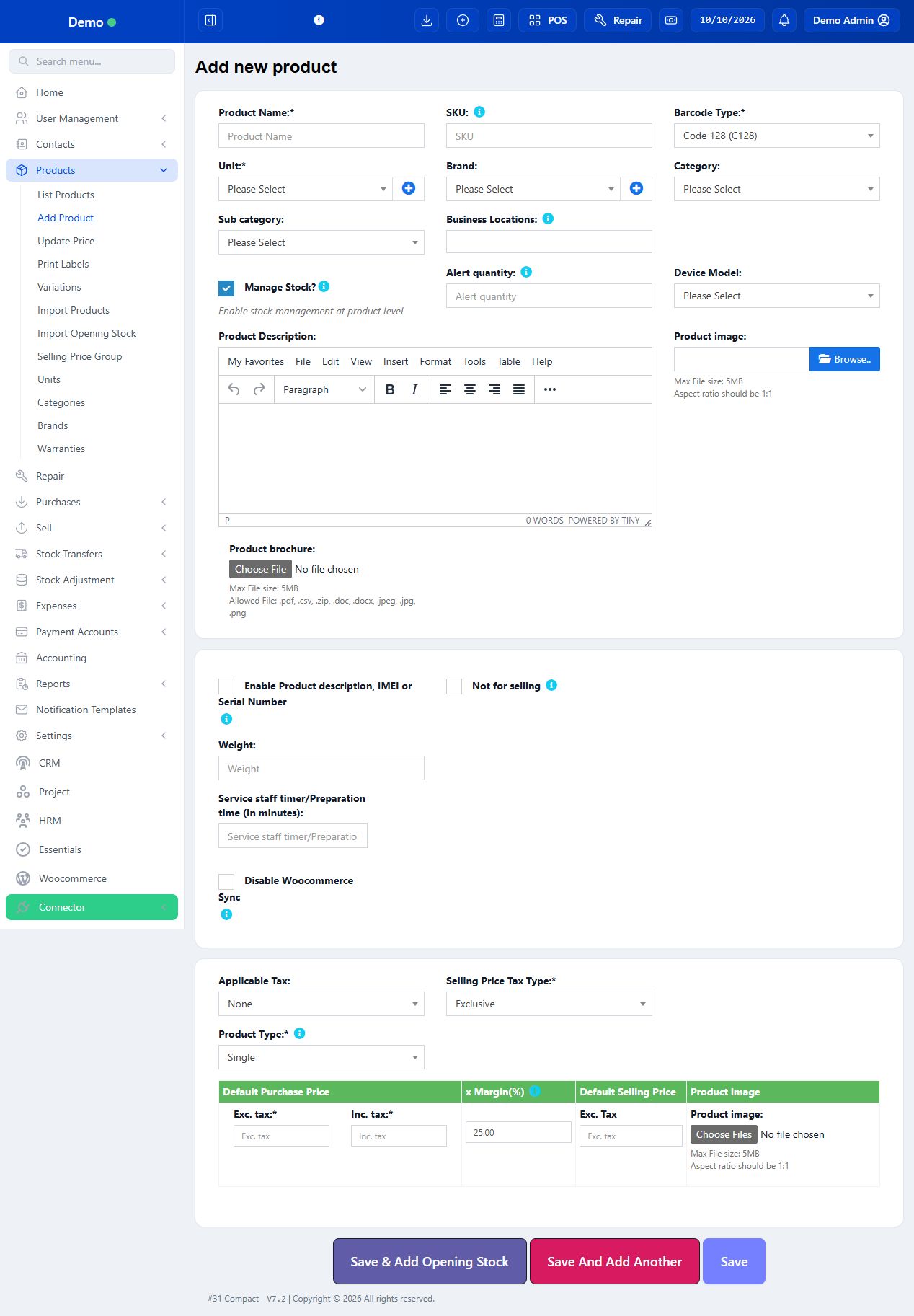
Configure registration details, tax rates, tax groups, product tax and invoice presentation as separate steps. Entering a GSTIN does not create a tax rate or automatically choose the correct tax for a sale.
5 procedures · Field reference · Practical example · Common questions
A tax rate is one named percentage. A tax group adds several component percentages together. Product tax is the rate applied to an item; invoice/order tax is an additional transaction-level selection. Inclusive means the entered price already contains tax; exclusive means tax is added to the entered base price. Compact exposes manual configuration: do not assume it automatically determines Indian place-of-supply treatment from a customer address. Have your accountant confirm which rates, classifications and invoice details your business needs; the numbers below illustrate the software, not the current rate for any product.
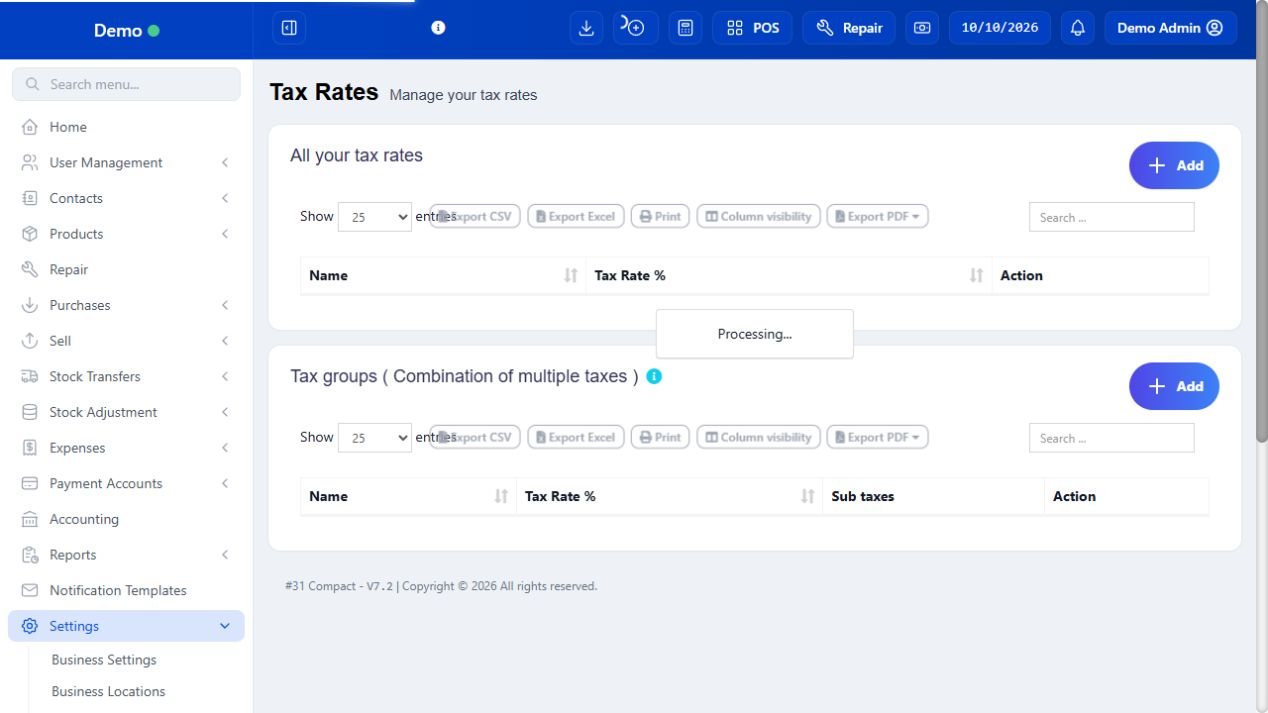
SCREEN GUIDE GST & taxes — module overview. Select the screenshot to enlarge; optional fields may differ in your business.
Field reference
Use this while completing the form. A required field is marked with *; conditional fields appear only when enabled.
Field / control
What to enter or understand
Tax 1 name / number
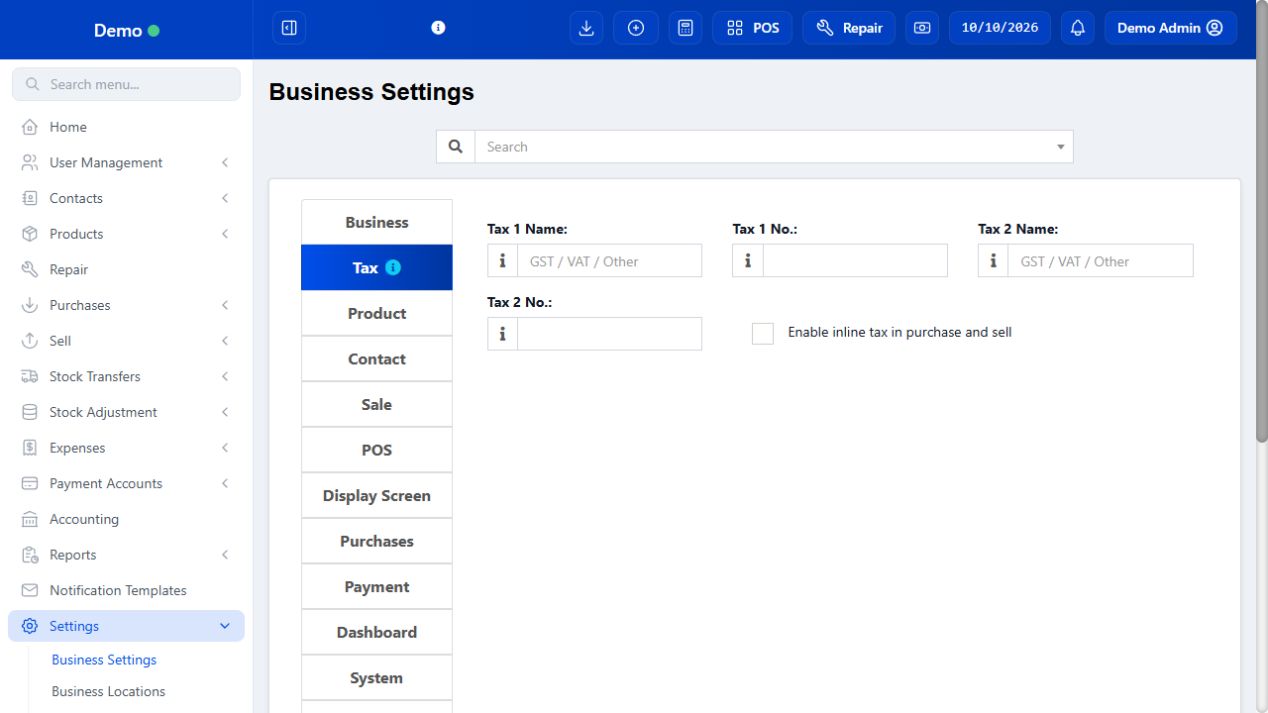
Business Settings → Tax: the printed registration label and your business registration number. For an Indian registered business, use GSTIN as the label and its actual GSTIN as the number. This is identification, not a percentage.
Tax 2 name / number
A second registration label/number if relevant. It is not where you enter the SGST percentage.
Enable inline tax
Allows item-level tax controls in supported transaction screens. Also check Business Settings → Product for the tax/price feature if product tax fields are hidden.
Tax rate Name
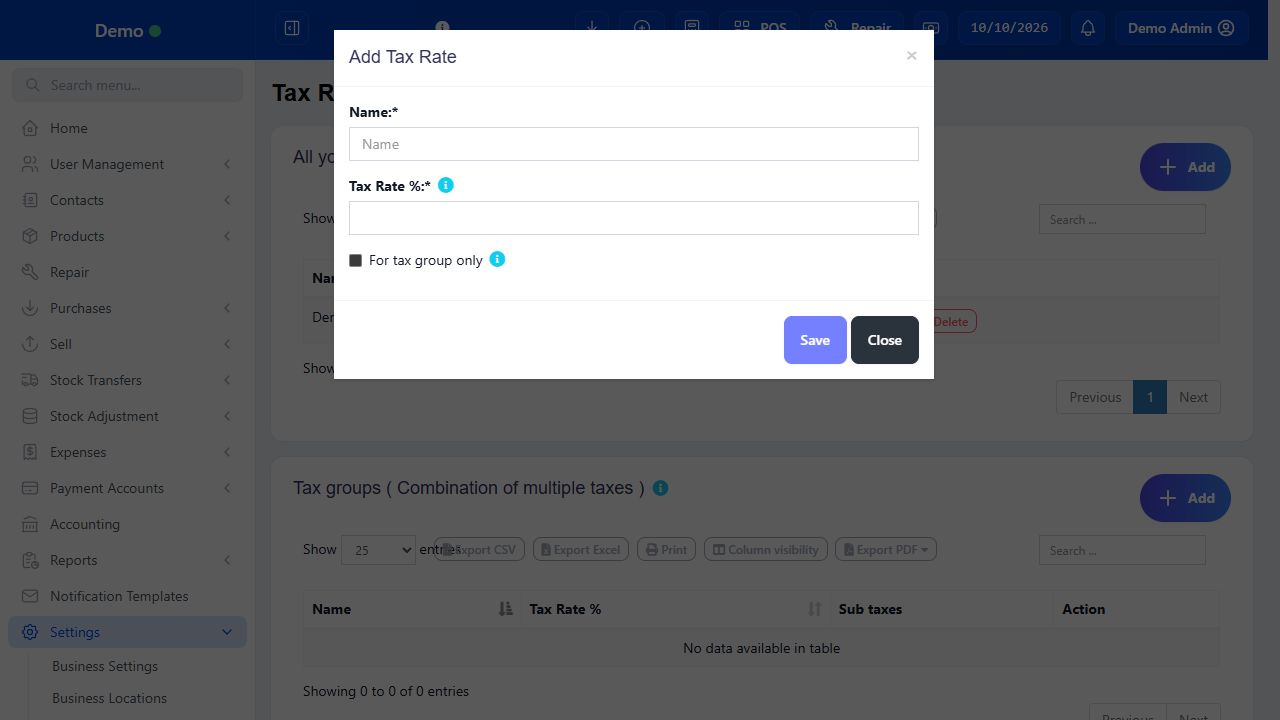
A meaningful name such as CGST example 9%, SGST example 9% or IGST example 18%. Include the rate so staff can distinguish entries.
Tax Rate %
Enter 9 for nine percent, not 0.09 or a currency amount. A zero rate and no selected tax have different meanings for reporting; choose intentionally.
For tax group only
Marks a component rate for combination in a tax group instead of standalone product selection. Useful for CGST and SGST component entries.
Tax group Name / Sub taxes
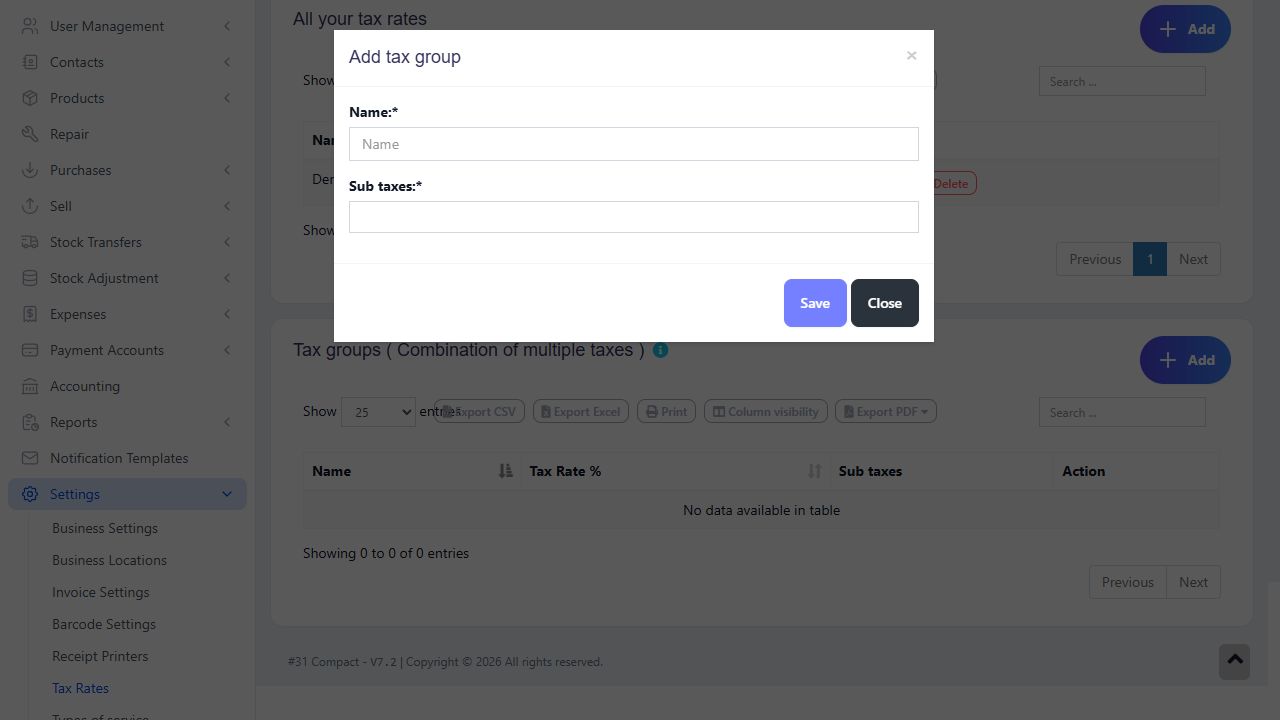
Name the combined treatment and select its component rates. Two example components of 9% produce a total of 18%; do not include another standalone 18% in the same group.
Applicable Tax
The product rate/group used when loading the item into a transaction. Review the actual sale row when an exception requires a different treatment.
Selling Price Tax Type
Inclusive or Exclusive describes what the selling-price entry means. Use the displayed Inc. tax / Exc. tax label rather than guessing.
Order / invoice tax
A separate tax choice on the entire transaction. Selecting the same GST here as well as on every line can add tax again. Review the invoice before saving.
Contact Tax number / state / address
Store customer or supplier registration and address details on the contact. An address alone is not proof that Compact automatically chooses CGST/SGST or IGST.
HSN / SAC and additional invoice fields
Use only the configured field/layout that is actually available in your business. A custom field is not automatically a validated GST classification or an e-invoice connection.
Before you start Have the correct registration details for this business, not a supplier’s GSTIN.
Steps
Open Business Settings and select the Tax tab. Enter GSTIN in Tax 1 name and the business GSTIN in Tax 1 number when applicable.
Use Tax 2 only for a genuinely separate registration detail. Keep unused fields blank instead of putting tax rates into them.
Review Enable inline tax. If Applicable Tax is hidden on Add Product, review the product tax/price feature in the Product tab as well.
Save the settings. Open the selected invoice layout and check its tax number display option; registration data and layout display are separate controls.
Preview a sample invoice. Confirm business name, address and GSTIN are shown in the correct positions. Correct the layout before issuing customer bills.
SCREEN GUIDE Enter business GST registration details — look for the controls described in the steps. Select the screenshot to enlarge; optional fields may differ in your business.
Check the result The business registration is stored and the chosen invoice layout displays it.
Where to go Settings → Tax Rates → All your tax rates → Add
Before you start Obtain the applicable rate list before configuration.
Steps
Choose Add in the upper All your tax rates panel. Enter a clear Name and the numeric Tax Rate %.
For a standalone tax such as an approved IGST rate, leave For tax group only unchecked. For component rates intended only for a group, select it.
Save. Search the list to verify the name and percentage. Repeat for each required component or standalone rate.
Do not rename an old rate into a different percentage just to change future billing. Create a clearly named new rate and review product assignments so historical meaning remains understandable.
If editing or deletion is offered, first check usage with the manager. Do not remove a rate needed by existing catalogue or records.
SCREEN GUIDE Create individual tax rates — look for the controls described in the steps. Select the screenshot to enlarge; optional fields may differ in your business.
Check the result The rate is listed and eligible for the intended product or group selection.
Where to go Settings → Tax Rates → Tax groups → Add
Before you start Use your accountant-approved components. The following 9% + 9% is a training example.
Steps
Create CGST example 9% and SGST example 9% in All your tax rates; mark them For tax group only if you do not want standalone use.
Choose Add in the lower Tax groups panel. Enter a distinct group name such as GST example 18% (CGST + SGST).
Select only the two component rates in Sub taxes, then save. Confirm the table shows 18% and both components.
Assign the combined group under the product’s Applicable Tax. Review the sale’s tax choice when a different supply treatment is needed.
Preview a sample invoice and the Tax Report. Check both components are presented as required by your chosen layout. Do not presume the default receipt is sufficient for every GST use case.
SCREEN GUIDE Configure a CGST and SGST tax group — look for the controls described in the steps. Select the screenshot to enlarge; optional fields may differ in your business.
Check the result A combined rate is available with a traceable component breakdown.
PROCEDURE 04
Set inclusive or exclusive product tax correctly #
Where to go Products → Add Product / List Products → Edit
Before you start Work with one training item first, then repeat on the appropriate catalogue records.
Steps
Select Applicable Tax. Choose Selling Price Tax Type to match how the shop quotes the price to the customer.
Exclusive example: base selling price 100 with an illustrative 18% tax gives tax 18 and gross price 118. Enter 100 only when the price field says Exc. tax.
Inclusive example: customer price 118 at 18% contains base 100 and tax 18. Enter 118 only when the active field says Inc. tax; do not add 18% again to 118.
Enter purchase cost in its correctly labelled tax field. Check the linked cost values and margin suggestion before saving.
Load one unit into POS, inspect price including tax, subtotal, invoice tax and total. Test a mixed-tax basket and a discounted line separately.
After changing rates or products, refresh the apps online and download fresh offline data before the next offline shift. Old snapshots retain downloaded values.
SCREEN GUIDE Set inclusive or exclusive product tax correctly — look for the controls described in the steps. Select the screenshot to enlarge; optional fields may differ in your business.
Check the result The configured product and the sample sale use the intended base, tax and final price.
Where to go Settings → Invoice Settings; Contacts; Reports → Tax Report
Before you start Know the details required for your actual invoice and reporting process.
Steps
Enter the customer’s name, address and GSTIN in its contact record when relevant. Verify these belong to the billed party.
Review invoice layout display for supplier registration, customer tax number, product description, units, quantities and tax breakdown. Configure any available HSN/SAC custom-field display deliberately.
Create an approved sample transaction, then preview the original web invoice. Check invoice date/number, taxable value, discounts, components and total.
Open Tax Report with the same location/date range and compare purchase/input and sales/output entries. Match the invoice, not only the dashboard total.
For interstate or other special treatments, review the actual transaction tax selection and invoice requirements with the accountant. Do not infer legal treatment solely from the rate name.
Use the accountant’s filing workflow. Saving a tax rate or printing a receipt does not register the business, file GST returns, create an IRN or send an e-way bill.
Check the result The sample invoice and recorded tax values agree; missing compliance fields are identified before live use.
IN PRACTICE
A practical example
Training basket: two items at a base price of 100 each with an example 18% group produce taxable value 200 and tax 36, split as 18 + 18, before other discounts/charges/rounding. A tax-inclusive total of 236 represents the same calculation. Selecting an additional 18% order tax would change the bill, so leave it unset unless the approved configuration specifically requires it.
Common questions
Why does GSTIN not change my total?
GSTIN identifies the business. Create rates/groups and assign product or transaction tax separately.
Why is tax charged twice?
Inspect both line tax and order tax, and check whether an inclusive amount was entered as a base price.
Is the demo rate a recommended GST rate?
No. Demo GST 5% is sample data. Use the currently applicable classification and approved rates for your products.
Will Compact choose IGST automatically?
The inspected generic rate/group forms provide manual configuration. Verify the actual transaction; this guide does not promise automatic place-of-supply or GST filing integration.
For official invoice requirements, refer to Official GST invoice particulars (CBIC). Illustrative rates in this manual are not a product tax-rate recommendation.