31 Compact logo31 COMPACTUser manual
Open application ↗Complete manual

Web portal

CRM

CRM helps staff remember who to contact and what to do next. Availability and access depend on your role and subscription.

In this moduleUnderstand the workflowField referenceCreate and follow up a leadCampaigns, proposals, call logs and customer accessCreate a lead and choose ownershipSchedule and complete a follow-upLog a call or interaction outcomePrepare a campaign or proposal carefullyProvide customer portal accessPractical exampleCommon questions

Understand the workflow

CRM manages prospects and customer interactions before and around sales. A Lead is a prospect, Source describes where it came from, Life stage describes its relationship stage, and a Follow-up is a dated action assigned to staff. Completing a follow-up does not necessarily make a lead a paying customer. Campaigns send external communications; templates do not send by themselves.

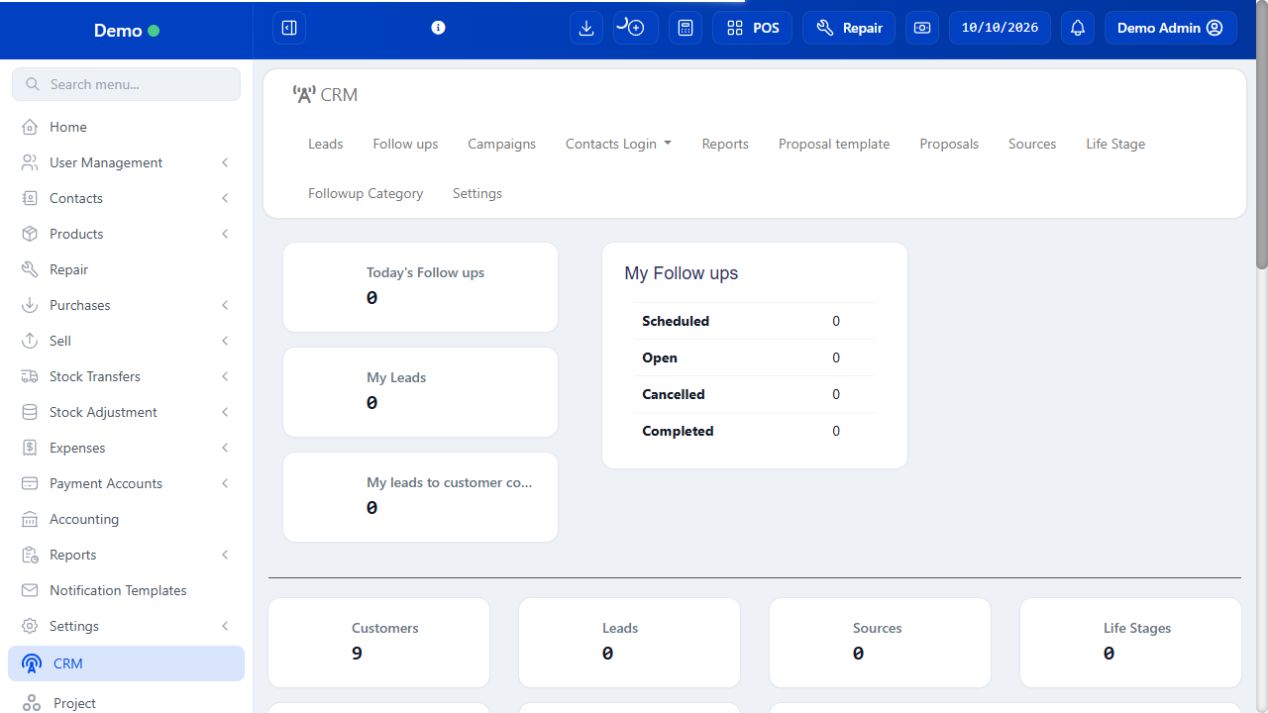
CRM — module overview
SCREEN GUIDE CRM — module overview. Select the screenshot to enlarge; optional fields may differ in your business.

Field reference

Use this while completing the form. A required field is marked with *; conditional fields appear only when enabled.

Field / controlWhat to enter or understand
Lead name / mobile / emailIdentify the prospect and intended contact channel. Search first to avoid duplicates.
Source / life stage / assigned staffAcquisition channel, relationship state and person responsible.
Follow-up title / contact / type / categoryWhat action is needed, with whom, and how it will occur.
Start / end / status / descriptionAppointment period, real progress and useful discussion notes.
Notify via / notify beforeReminder channel/timing where configured; separate from permission for external marketing.
Campaign name / type / recipients / subject / bodyOutbound message content and audience. Review actual recipients before sending.
Proposal / templatePrepared offer; check customer-specific terms before sharing.
Contact loginCustomer portal account scoped to its contact, not a staff/admin role.

PROCEDURE 01

Create and follow up a lead

Where to go CRM → Leads / Follow-ups

Before you start
Have contact details and a clear next action.

Steps

  1. Add the lead with name/contact information, source, life stage and assigned staff member as offered.
  2. Create a follow-up with the contact, assigned user, date/time, type and description.
  3. Use My Follow ups or the follow-up list to see work due. Record the result/status after the interaction.
  4. When the lead becomes a customer, use the provided conversion workflow and check the customer record before raising a sale.

Check the result
Staff can see the next contact action and recorded outcome.

PROCEDURE 02

Campaigns, proposals, call logs and customer access

Where to go CRM → the relevant submenu

Before you start
Use only the features enabled for your business and communications the customer agreed to receive.

Steps

  1. Prepare a campaign or proposal with the intended contacts and content. Review the recipient list and message before sending.
  2. Use follow-up logs/call logs where available to record interactions and outcomes.
  3. If customer login access is offered, the administrator creates appropriate contact access; the customer sees their permitted records.
  4. Review CRM reports for follow-ups by user/contact and lead conversion.

Check the result
Customer activity and follow-up performance can be reviewed.

PROCEDURE 03

Create a lead and choose ownership

Where to go CRM → Leads

Before you start
Search name/mobile before adding a new prospect.

Steps

  1. Enter the prospect’s identifying/contact details and relevant business name.
  2. Select Source and Life stage from your configured choices, then assign the responsible staff.
  3. Save and reopen to verify phone/email and ownership. Keep verified customer contacts separate from guessed prospect data.
  4. Add a dated follow-up for the next action rather than only leaving a general note.
  5. When the person becomes a customer, use the offered conversion/contact workflow and check the existing record so no duplicate is created.

Check the result
The prospect has a clear owner and next action.

PROCEDURE 04

Schedule and complete a follow-up

Where to go CRM → Follow-ups → Add / Edit

Before you start
Have a specific action and the intended contact.

Steps

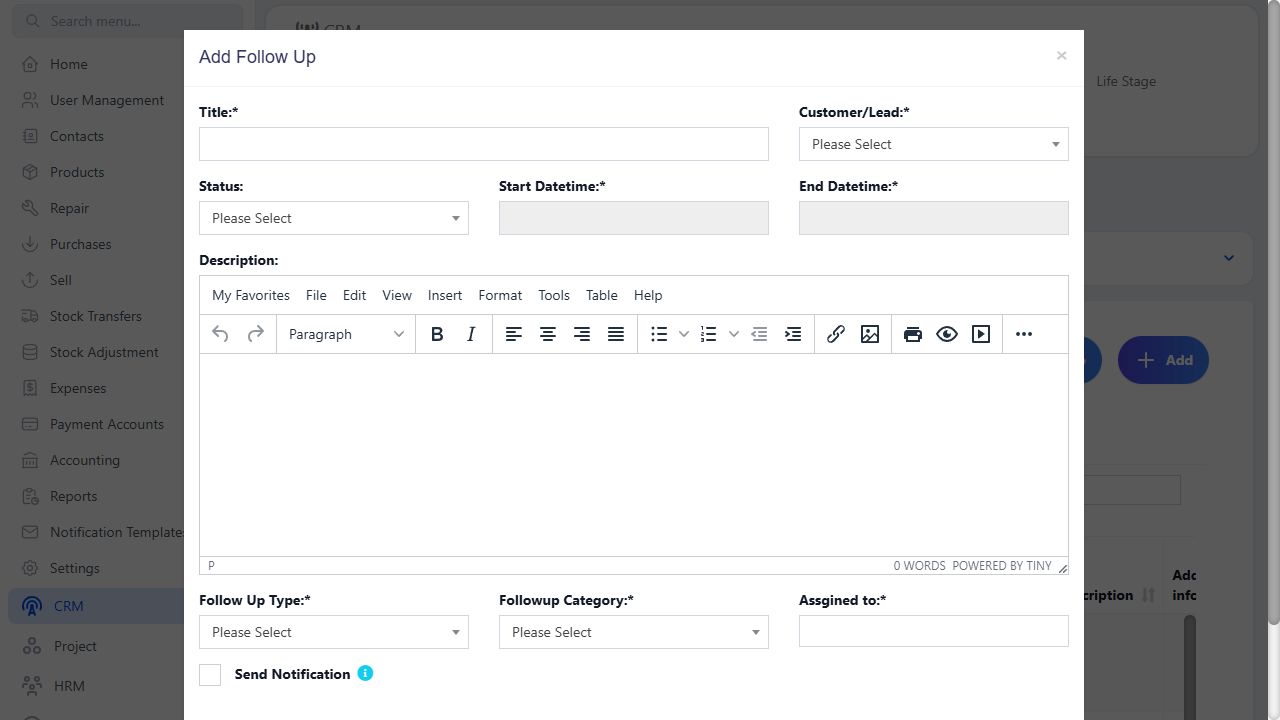
  1. Enter Title, Contact and follow-up Type/category. Describe the purpose, such as checking approval for a quotation.
  2. Set Start/End date-time and assigned Users. Choose initial Status and relevant Description.
  3. Review reminder channel and lead time where offered. Save and check the follow-up list/calendar for the intended date.
  4. After the call/visit, enter the outcome through the log/edit action and update status.
  5. Create the next action with a new date if needed. Do not mark a missed call as a completed agreement.
Schedule and complete a follow-up — look for the controls described in the steps
SCREEN GUIDE Schedule and complete a follow-up — look for the controls described in the steps. Select the screenshot to enlarge; optional fields may differ in your business.

Check the result
The interaction and next commitment are traceable.

PROCEDURE 05

Log a call or interaction outcome

Where to go CRM → contact / Follow-up → log action

Before you start
Use the actual event details, not the planned time if it changed.

Steps

  1. Open the correct contact/follow-up and choose the offered log action.
  2. Enter subject, type, start/end and a concise factual description of what occurred.
  3. Update the real status/outcome. Record agreed next steps without unnecessary private information.
  4. Save and check history, then schedule the next follow-up when needed.
  5. If a sale occurs, record it in the billing workflow; a call log is not an invoice.

Check the result
Another staff member can understand the interaction without repeating it.

PROCEDURE 06

Prepare a campaign or proposal carefully

Where to go CRM → Campaigns / Proposals / Proposal templates

Before you start
Use the approved channel, audience and business wording.

Steps

  1. For a campaign, select email/SMS type and the actual contact/lead recipient selection offered.
  2. Review subject/body, any template placeholders and recipients. Confirm that gateway settings work through an authorised test first.
  3. For a proposal, use a template as a starting point and check customer-specific scope, prices, terms and contact details.
  4. Save/review before using the explicit send/share action. Do not assume a saved template has already reached the customer.
  5. Review delivery/status/history where provided. Avoid sending a second campaign simply because no acknowledgement has arrived.

Check the result
Messages and offers contain the intended content and reach the intended audience.

PROCEDURE 07

Provide customer portal access

Where to go CRM → Contact login / enabled portal controls

Before you start
Use an authorised administrator and the intended customer contact.

Steps

  1. Select the correct contact and enter the customer user details required by the form.
  2. Assign only the portal permissions needed; this is not a staff administrator account.
  3. Use your business’s approved credential handover/reset procedure rather than printing passwords on customer documentation.
  4. Have the customer check their own permitted bills/orders through their portal account.
  5. If a customer can see unrelated records, stop using that access and ask the administrator to correct its contact/permission scope.

Check the result
Customer access is restricted to the intended portal scope.

IN PRACTICE

A practical example

A prospect from a shop visit has Source = Visit and an assigned salesperson. The follow-up is a Tuesday call to discuss the quotation. Record its outcome, then either schedule another call or use the actual sale workflow when the customer orders.

Common questions

Does a campaign template send immediately?

Saving a template and sending a campaign are separate actions. Review the actual recipients and send controls.

Why does my colleague not see a follow-up?

Check assignment, period/status filters and CRM permissions.