Each Windows/Android installation has its own local storage. It saves an outlet snapshot and queued sales on that device; it does not make the ordinary web portal work offline.
5 procedures · Field reference · Practical example · Common questions
Offline mode has dedicated device-local storage. A successful online download creates the snapshot for one business/user/outlet, and the PIN unlocks that prepared workspace without a network connection. Offline sales are durable local records until accepted by the server. Another device cannot see them or reserve their stock in real time. Synchronization is a business validation step, not just uploading a PDF.
SCREEN GUIDE Offline mode — module overview. Select the screenshot to enlarge; optional fields may differ in your business.
Field reference
Use this while completing the form. A required field is marked with *; conditional fields appear only when enabled.
Field / control
What to enter or understand
Prepared workspace / outlet / last download
Which cached business data is available and when it was captured.
Offline PIN
Device workspace unlock credential, separate from the portal password. Set and keep it private.
Local reference / queued
Device sale awaiting confirmation. Keep the reference through retries.
Confirmed / server invoice
Accepted server transaction with its original invoice identity.
Needs review / rejection reason
Server validation failed; inspect the cause before retrying.
Download vs synchronization
Download updates reference data; synchronization confirms locally saved sales. One does not replace the other.
Encrypted local database
SQLite-backed local records with encrypted payloads and platform-managed key material; server backups do not contain pending device sales.
Where to go Native Settings → Offline mode → Download offline data
Before you start Sign in online, select the outlet and open a shift online first.
Steps
Choose Download offline data. Set an Offline PIN containing 6 to 12 digits and choose Download.
Wait for Offline data downloaded. Check Last download and the selected location.
The saved data includes catalogue, customers, taxes/units, outlet, current register and downloaded finalized history. Prepare each device/outlet separately.
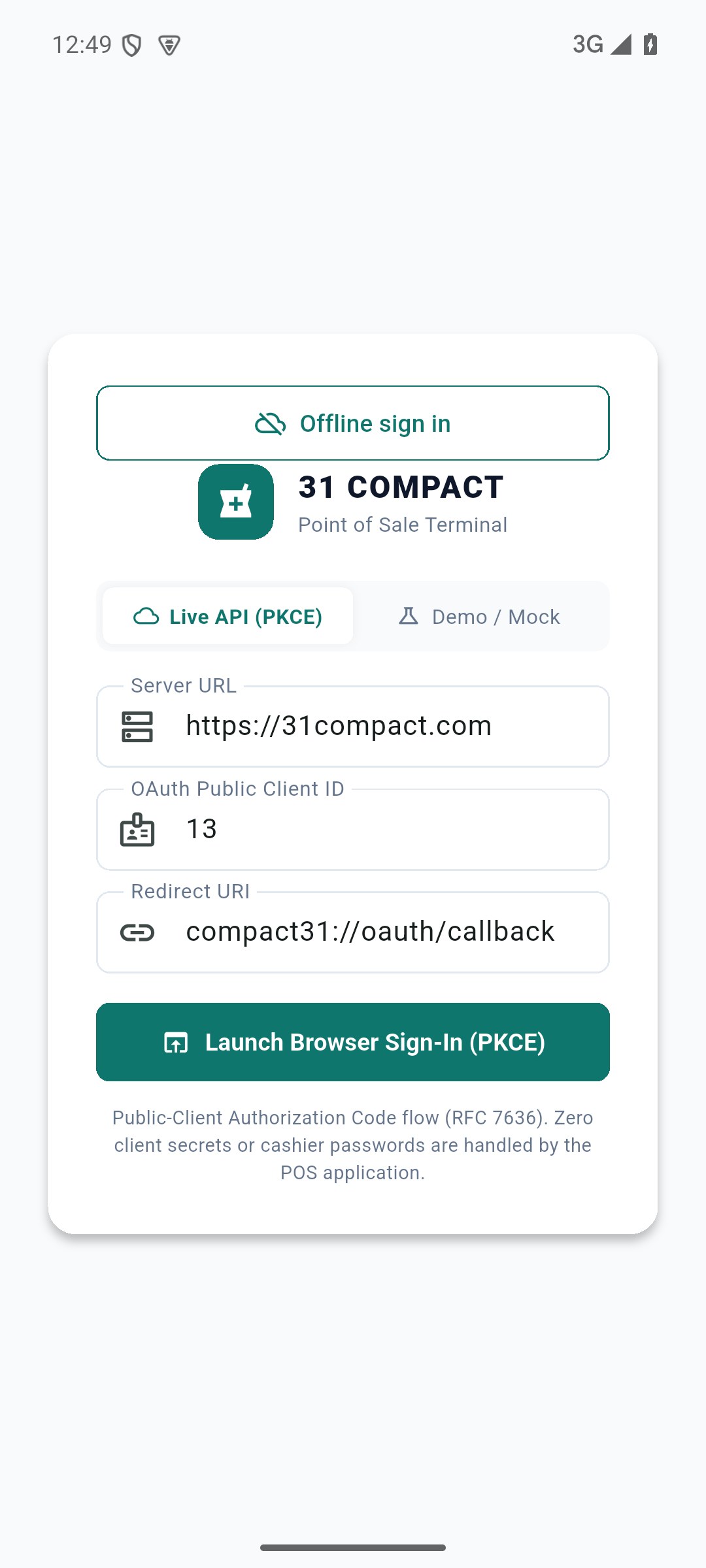
Choose Work offline or the offline sign-in option and enter the PIN. Confirm the app shows offline mode before relying on it.
Check the result This device can use the prepared cashier/outlet data without a connection.
Where to go Native offline POS → payment → Save offline sale
Before you start Use only the cached cashier/outlet and available downloaded stock.
Steps
Search downloaded products and customers. Select the correct batch and quantity; offline quantities are limited by cached stock and sales already saved locally.
Review the prices, discounts and total. Record the payment that actually occurred and choose Save offline sale.
Open Offline sales & synchronization to check the local sale/reference and queued status.
If you print locally, the receipt is provisional and marked OFFLINE RECEIPT — AWAITING SERVER CONFIRMATION. Retain the local reference until synchronization.
Check the result The sale is stored durably on this device awaiting server confirmation.
Where to go Native Offline sales & synchronization
Before you start Preserve the record and read the rejection reason.
Steps
Inspect the reason and original reference. Common causes include changed stock/credit/permissions or register conditions.
Compare server stock and the intended cashier/outlet/register with the offline sale. Ask the manager to resolve the actual business issue.
Use the existing record’s offered retry after correction; keep its original identity.
Check for server confirmation and the resulting invoice before making any new sale for those goods.
If the issue remains, retain the device data and give support the sanitized reference/reason. Do not delete the queue to make the warning disappear.
Check the result The sale either becomes confirmed or remains preserved for a deliberate resolution.
IN PRACTICE
A practical example
Two devices each download stock of 3 mugs. Each may sell 2 while disconnected because neither sees the other’s local sale. On reconnection the server validates actual remaining stock; a rejected sale needs review rather than an invented extra stock quantity.
Common questions
Can server backup recover my queued sale after uninstall?
No. It has not yet reached the server; preserve the device data and synchronize first.
Does offline cover all modules?
No. The current native offline scope covers prepared counter sales/data. Expenses, register open/close, finalized-bill editing and full ERP modules remain online workflows.